Quality check
Learn how to use the automatic Quality check and Quality score for heatmaps to identify gaps and improvement opportunities in your knowledge base.
Written By Tommy Giesbrecht
Last updated 5 months ago
Article goal: After reading this article, you will be able to open the Quality check, understand the quality score and improvement suggestions, and take targeted actions to improve your heatmap.
You can access this area with the Editor or Administrator role.
What is the Quality check?
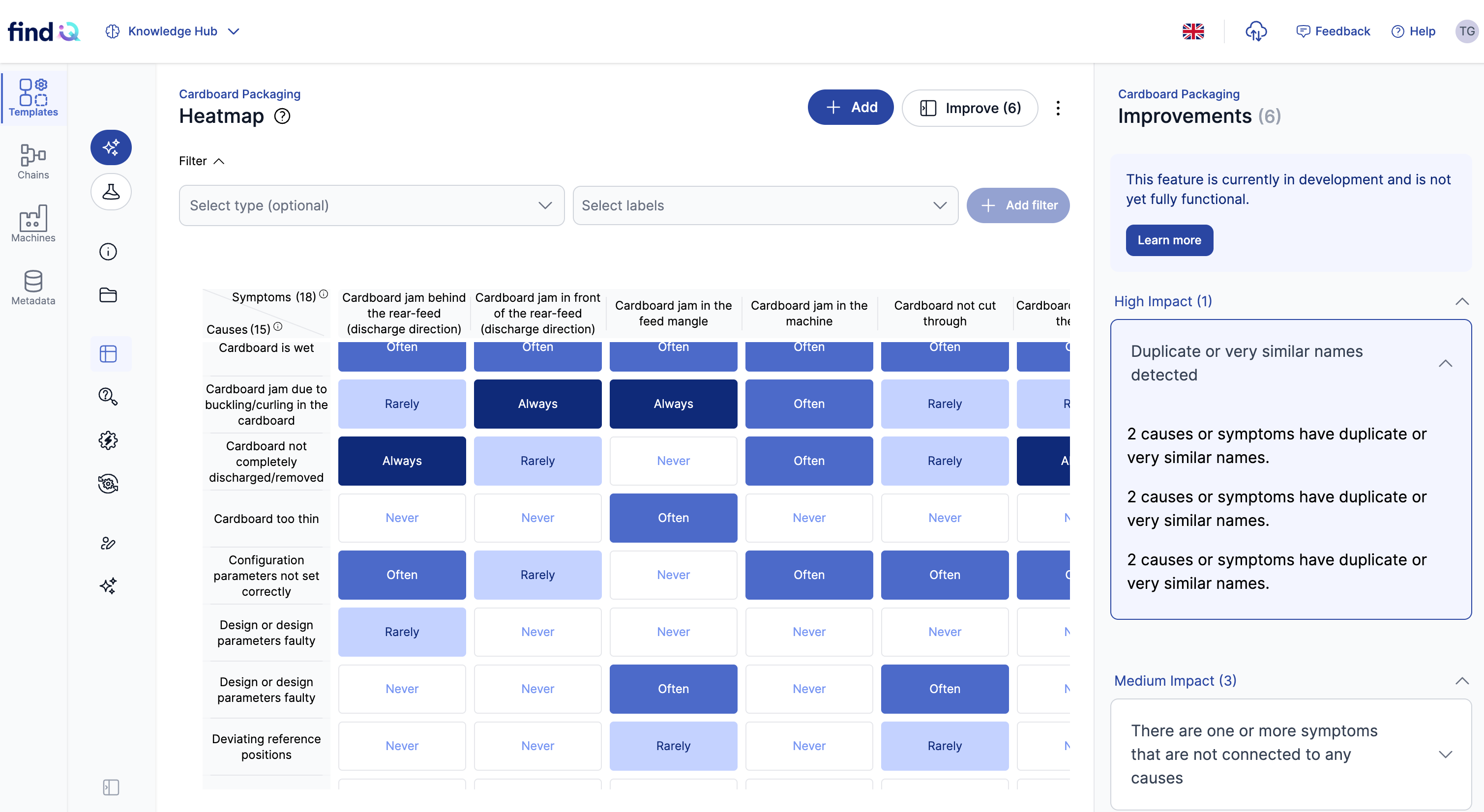
The Quality check automatically analyses the heatmap of a template and surfaces issues that may reduce diagnosis quality. Each open heatmap shows a Quality score as a percentage in the top right corner, and the Quality check panel lists all detected issues grouped by impact.
How to open the Quality check
1. Open the heatmap of a template
Click Knowledge Hub in the top navigation, select a template under Templates in the left sidebar, then click Heatmap.
2. Open the Quality check panel
Click the Quality (XX%) indicator in the upper right corner of the heatmap view. The Quality check panel opens on the right side and shows the number of detected issues in parentheses (for example, "Quality check (5)").
3. Review the suggestions
Suggestions are grouped by impact:
High Impact — Critical issues that significantly affect diagnosis quality.
Medium Impact — Issues that affect the clarity or completeness of the heatmap.
Low Impact — Minor optimisations that improve readability and consistency.
Click on a suggestion to expand it and see the recommended action.
Understanding the Quality score
The Quality (XX%) indicator in the top right corner of the heatmap view shows the overall quality of the cause–symptom matrix. The dot next to the percentage uses a colour scale:
Red — multiple high-impact issues are present.
Yellow — only medium- or low-impact issues remain.
Green — no significant issues detected.
The score updates automatically when you edit the heatmap.
What does the Quality check detect?
The Quality check automatically analyses the heatmap and detects various types of issues, for example:
More causes than symptoms — The heatmap has more causes than symptoms, which may indicate that some causes should be consolidated or that symptoms are missing.
Disconnected cause — A cause that is not connected to any symptom.
Disconnected symptom — A symptom that is not connected to any cause.
Duplicate or very similar names — Symptoms or causes with nearly identical names that should be merged.
Similar cause frequency patterns — Multiple causes with nearly identical fault patterns that could potentially be combined or should be better differentiated.
Similar symptom frequency patterns — Multiple symptoms with nearly identical assigned causes that could potentially be combined or should be better differentiated.
Missing descriptions — Causes or symptoms without description text.
Missing labels — Causes or symptoms without assigned labels.
Too many "Nie" (Never) — If "never" appears excessively in the heatmap, it may indicate missing assignments.
Too many "Immer" (Always) — If "always" appears excessively in the heatmap, the assignments should be reviewed.
Negative modifiers in symptom names — Symptoms with words like "no", "not", or "without" in the title that should be rephrased for clarity.
Each detected issue is shown in the Quality check panel under High Impact, Medium Impact, or Low Impact, depending on how strongly it affects diagnosis quality.
Important notes
The Quality check runs automatically. After every edit, the Quality score and the list of issues are updated.
The improvement suggestions are recommendations. Review each suggestion in the context of the template before applying changes.
The total number of detected issues is displayed in parentheses next to the panel title (for example, "Quality check (5)").
FAQ
Why don't I see any improvement suggestions?
Why don't I see any improvement suggestions?
If the Quality check does not detect any issues, the panel shows no suggestions and the Quality score is high. The heatmap is in good shape.
Do I have to apply every suggestion?
Do I have to apply every suggestion?
No. The suggestions are recommendations. Prioritise High Impact items first because they affect diagnosis results the most, and decide in the context of your template which changes make sense.
What does the percentage in "Quality (XX%)" mean?
What does the percentage in "Quality (XX%)" mean?
The percentage is an aggregated score that reflects the overall quality of the heatmap. It is influenced by the number and impact of detected issues — the fewer high-impact issues, the higher the score.
What do "High", "Medium", and "Low Impact" mean?
What do "High", "Medium", and "Low Impact" mean?
These categories indicate how strongly a detected issue affects diagnosis quality. High Impact issues should be resolved first because they have the largest effect on diagnosis results.