Reviewing User Suggestions
Learn how to manage and check user suggestions within a template.
Written By Tommy Giesbrecht
Last updated Over 1 year ago
Open User suggestions
Open a template and select the menu item User Suggestions in the Optimizations area.
The red dot indicates that there are open user suggestions that need to be reviewed.
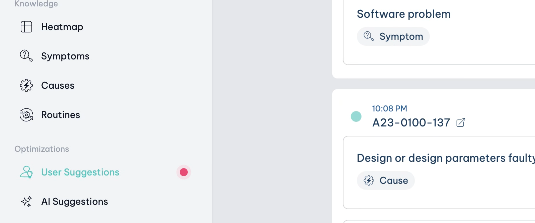
Listing User Suggestions
You will see two tabs on the page, which differ in terms of the user suggestions that need to be reviewed and those that have already been processed in the past.
The user suggestions are grouped according to the respective logbook entries in order to ensure the overall context when reviewing.
You will see all the logbook entries with suggestions from all the machines related to the selected template.
For more contextual information, click on the title of the logbook ID to open the full contextual information and view the logbook entry.
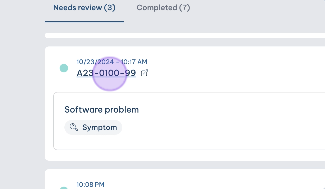
All suggestions are listed within a card, representing either symptoms or causes.
Accepting or Rejecting Suggestions
⚠️ It is important to note that you cannot accept symptoms if there is no cause in the logbook or a suggested cause is still pending. In this case, you must first accept the suggested cause before you can accept the symptoms.
Before you accept or reject suggestions, you have the option of editing them, for example to correct spelling mistakes, add additional contextual information or customise description texts.
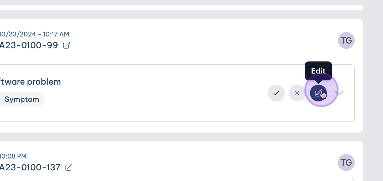
If you want to accept a suggestion, click on the checkmark, which will transfer the suggestion directly to the knowledge base. Alternatively, you can also reject the proposal by clicking on the button with the x icon
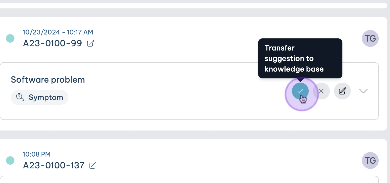
All accepted suggestions appear in the list under Causes or Symptoms. Symptoms and causes from a logbook are automatically linked in the knowledge base with the frequency 'often'.