External IDs
Link findIQ objects to identifiers from your own systems and open machines, routines and troubleshooting directly by External ID.
Written By Tommy Giesbrecht
Last updated 16 days ago
An External ID is an identifier from one of your own systems, for example an asset number from your ERP, a work order number from your maintenance software or a fault code from your ticket system. You store it on a findIQ object and can then address that object with your own identifier instead of the internal findIQ ID.
You can assign External IDs with the Editor or Administrator role.
Article goal: After reading this article, you will know which objects can carry an External ID, how to assign one, and how to open machines, routines and troubleshooting by External ID.
Why External IDs
Your systems link into findIQ with the identifiers they already use, so you do not have to maintain a mapping table.
Internal findIQ IDs keep working everywhere. External IDs are an additional way in, not a replacement.
Which objects and what for
Opening objects by External ID
Wherever a machine ID or a routine ID appears in one of these URLs, you can use the External ID instead:
Machine page:
https://app.findiq.de/app/{organisation}/operator/{machine}Standalone troubleshooting:
https://app.findiq.de/standalone/{organisation}/{machine}/diagnose/Standalone routine:
https://app.findiq.de/standalone/{organisation}/{machine}/routine-run/{routine}Example with an External ID:
https://app.findiq.de/standalone/acme/ERP-4711/diagnose/Troubleshooting with preselected symptoms
Add the symptoms parameter with a comma-separated list. The entries can be External IDs, internal symptom IDs or a mix of both. findIQ starts troubleshooting with those symptoms already answered:
https://app.findiq.de/standalone/acme/ERP-4711/diagnose/?symptoms=ERP-S1,ERP-S2Entries that match no symptom of this machine are ignored, the remaining ones are still preselected.
Once the object is loaded, findIQ replaces the External ID in the address bar with the internal ID, so a bookmark always holds the canonical link.
An External ID does not grant access. Users still need permission for the machine. If the ID matches no object, findIQ shows a "not found" notice.
Assigning and maintaining External IDs
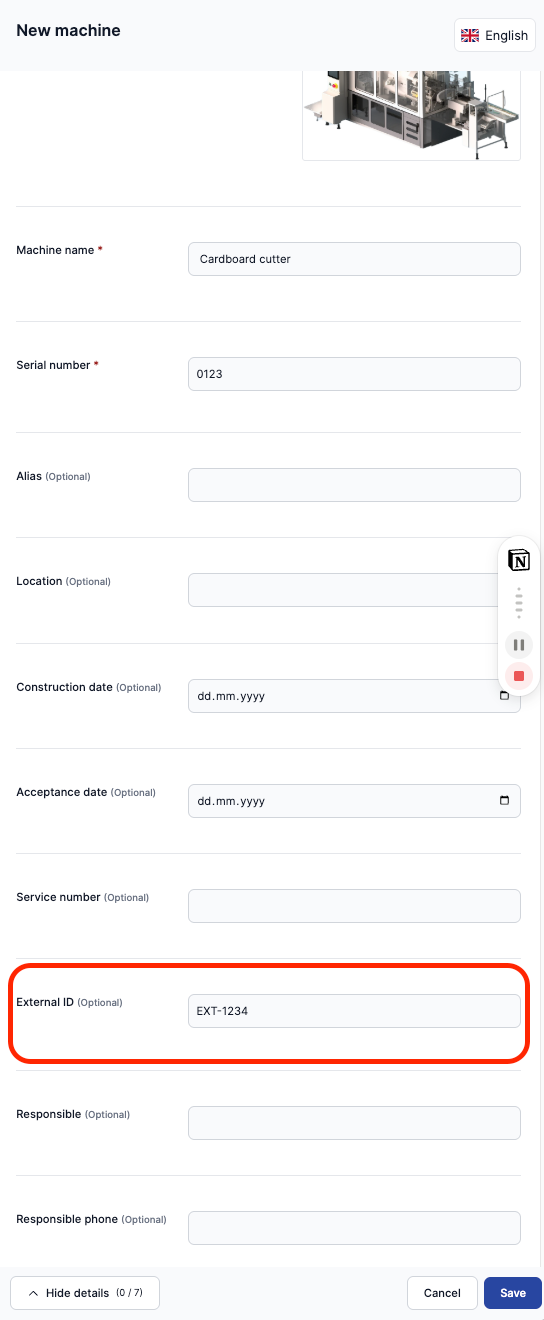
Open the editor of the machine, routine, cause or symptom and fill in the External ID field. The field is optional.
Clearing the field releases the ID, another object can use it afterwards.
Copies never inherit an External ID. A routine copied from another routine and a template copied from another template start without one.
Changing an External ID breaks the links from your systems that still use the old value. Treat External IDs as stable.
Check whether an External ID already exists
In the app: enter the ID in the global search. Machines, routines, causes and symptoms are found by their External ID, and both spellings work,
ERP-4711as well asERP4711.Via API:
GET /api/records/{organisation}/machines/{external_id}. If the ID is taken, the machine is returned. If it is free, the response is 404.If you assign an ID that is already taken, findIQ rejects the change with a conflict error, so duplicates cannot be created by accident.